A comma-separated value (CSV) file is a common and useful method of uploading a large amount of information in one go. CSV files are used across most ecommerce platforms (e.g. Amazon, eBay, BigCommerce, Etsy) as a way to export order information.
Importing orders using a CSV file you’ve downloaded from your ecommerce platform is a great way to save time when you have a lot of orders to process.
Log in to your ecommerce platform, and find the method that lets you download your orders in CSV format. Most (but not all) platforms allow this.
Step 1. Download our template
If you’re sending parcels domestically download our domestic only template. If you’re sending parcels internationally or both internationally and domestically, download our domestic and international template.
Step 2. Open our template as an XLSX file
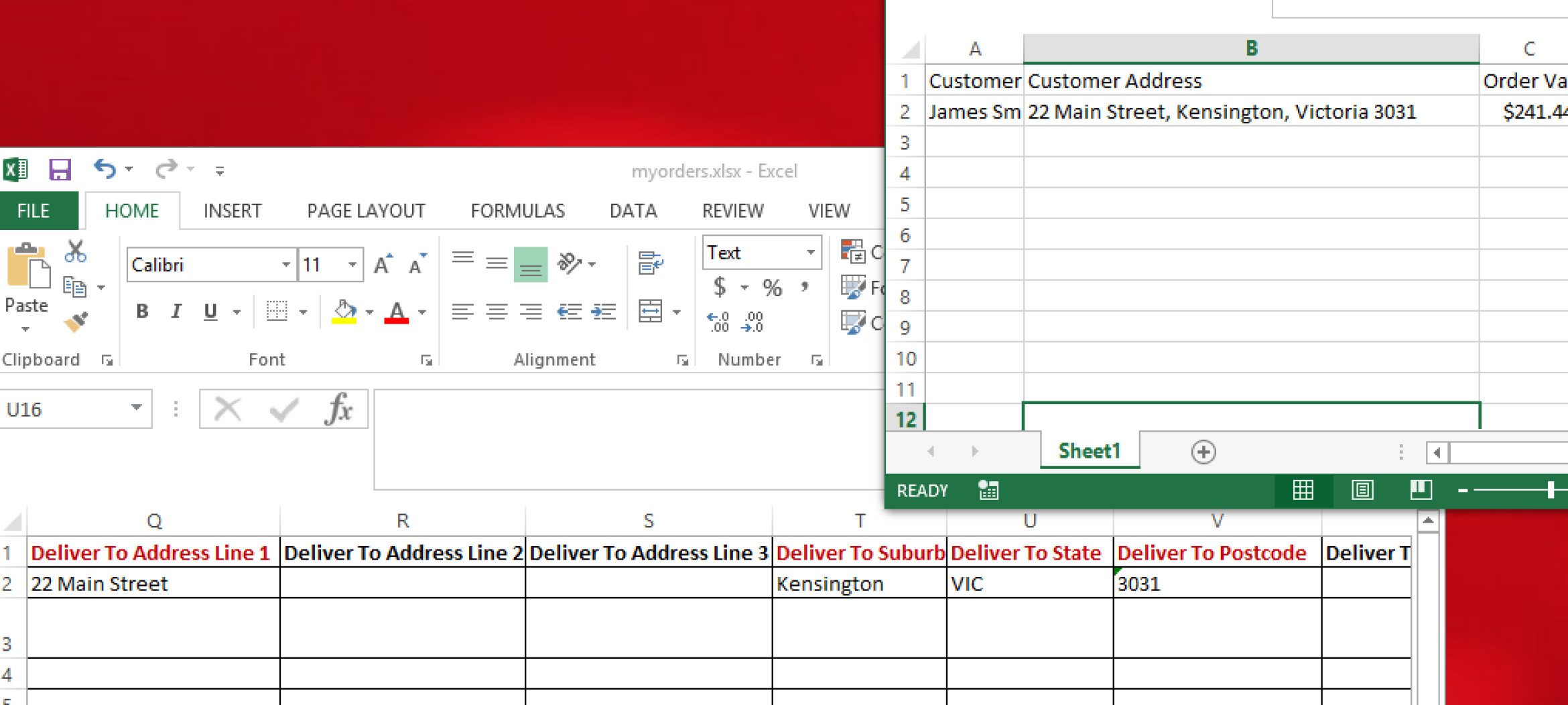
Open the template using a spreadsheet program like MS Excel, Numbers or Google Sheets. Save and rename it, so it is still an XLSX file (e.g. myorders.xlsx).
Step 3. Open your eCommerce platform’s CSV file
Step 4. Match the field labels in your file to those in our template
Copy the relevant column data from your eCommerce CSV file to the corresponding columns in your newly created XLSX file (myorders.xlsx).
Note: Make sure you don't overwrite or change the first row in your renamed XLSX file - this contains the column names we need to import your orders.
As eCommerce platforms use a variety of naming conventions, you'll need to map the data in your eCommerce CSV file to the correct columns in our template. For example, your CSV file may have a column called ‘Customer Address’, so you'll need to copy and match that data across the following fields: Deliver To Address Line 1, Deliver To Suburb, Deliver to State, and Deliver To Postcode fields in the renamed XLSX file (e.g. myorders.xlsx).
Use our CSV guides to help you match each column:
- Domestic only senders use the Domestic CSV guide
- International only senders use the International CSV guide
- International and domestic senders use the Domestic CSV guide and the International CSV guide
Make sure your XLSX file (e.g. myorders.xlsx) doesn't contain blank rows and that each column header is unchanged from our template.
If you don’t want to import certain rows of data, insert a hash symbol (#) as the very first character in the rows to be skipped.
Step 5: Upload the updated XLSX file and upload it for import
Once you've copied the relevant data from your ecommerce CSV file to your renamed XLSX file, you'll need to save it as a CSV file (e.g. myorders.csv). You're now ready to upload the file into the system.
To import your CSV file, hit ‘Import CSV’. Then hit ‘Choose your file’ to locate your file and upload it. When you’re ready to import, hit ‘Import orders’.
You’ll receive a warning about uploading duplicate orders. If you’re sure this is the first time you’ve uploaded your orders, proceed with the import.
The import process may take some time, depending on how many orders you’re importing. The good news is that if you leave this page, close your browser, or lose power, the import process will continue and you’ll receive an email letting you know when your upload is complete.
Once you’ve uploaded your file, you’ll see a summary showing how many orders were imported successfully and which orders – if any – weren't imported, in your Error file log. You’ll also receive this summary by email.
You can resubmit failed orders by uploading a new version of your CSV file with the errors corrected.
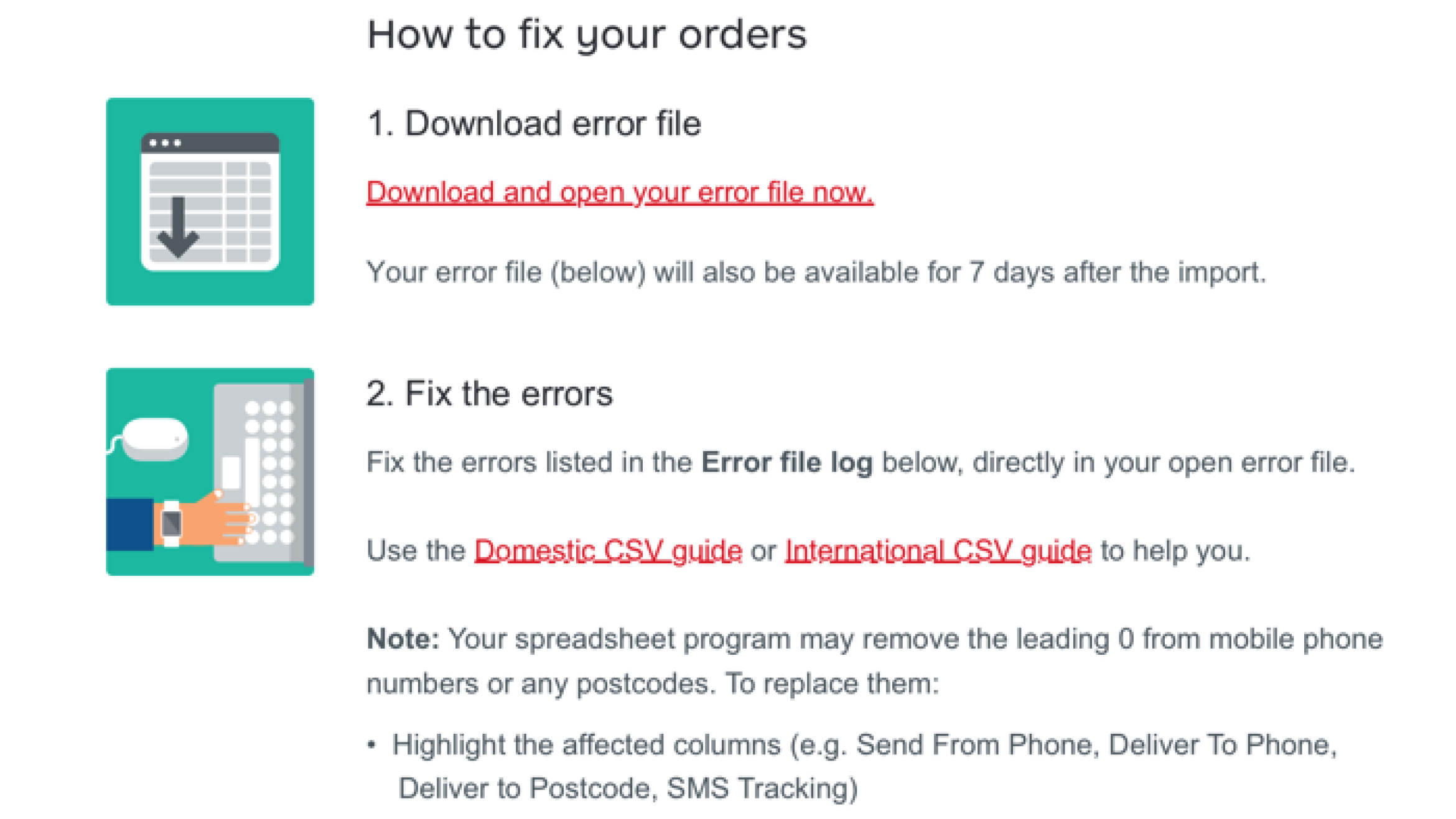
Step 1. Hit ‘Download error file’ in your Imported orders summary - this will download a CSV file containing only orders with errors. This file will be available for 7 days after the import is completed.
Step 2. Open the error CSV and fix the errors as shown in the import summary. Use our CSV guides to help you fill these rows correctly:
- Domestic only senders use the Domestic CSV guide
- International only senders use the International CSV guide
- International and domestic senders use the Domestic CSV guide and the International CSV guide
Make sure there are no blank rows in your file.
Note: Your spreadsheet program may remove the leading 0 from some post codes and mobile phone numbers. To add the 0, you’ll need to highlight the relevant columns (e.g. Send From Postcode, Deliver To Postcode, Deliver to Phone Number) and change the formatting from ‘general’ to ‘text’.
Step 3. Save and rename your amended file in CSV format again (e.g. retryorders.csv) and upload it into the system.
This is a list of all the domestic field labels in our domestic only template.
Use this guide to:
- Compare your field labels - match your eCommerce site’s field labels with our template for your import.
- Correct order errors - if you have order errors listed on your Imported orders summary that need fixing. For help with this see How to fix unsuccessfully imported errors along with this guide.
The fields are listed in order of priority:
- Mandatory - must complete
- *Conditionally mandatory (fields with asterisk) - complete if certain mandatory fields entered
- Optional - not essential
Mandatory
| Field label | Description | Limits |
|---|---|---|
| Send From Name | Name of the parcel sender. | 35 characters maximum |
| Send From Address Line 1 | Address where the parcel will be sent from. | 40 characters maximum |
| Send From Suburb | Parcel sender’s suburb. | 30 characters maximum |
| Send From State | Valid values are: ACT, NSW, NT, QLD, SA, TAS, VIC, WA. The state code for the parcel sender's address. | |
| Send From Postcode | Parcel sender’s postcode. | 4 numbers maximum |
| Deliver To Name | Name of the parcel recipient. | 35 characters maximum |
| Deliver To Address Line 1 | Address where the parcel will be sent. | 40 characters maximum |
| Deliver To Suburb | Suburb where the parcel will be sent. | 40 characters maximum |
| Deliver To State | Valid values are: ACT, NSW, NT, QLD, SA, TAS, VIC, WA. State code for the parcel recipient's address. | |
| Deliver To Postcode | Parcel recipient’s postcode. | 4 numbers maximum |
| Item Packaging Type | Valid values are: OWN_PACKAGING for using your own packaging. For Australia Post satchels:
For Australia Post boxes:
These describe the type of packaging used for the parcels. Find more information on Australia Post packaging types. | |
| Item Delivery Service | Valid values are: PP for Parcel Post and EXP for Express Post. This field describes the parcel's method of delivery. | |
| Item weight | Parcel’s weight in kilograms. For OWN_PACKAGING, the maximum weight is 22kg. | Must be less than 22 kg |
Conditionally mandatory
| Field label | Description | Limits |
|---|---|---|
| *Item length | Parcel's length in centimetres. Required when OWN_PACKAGING is selected. | Must be less than 105 cm |
| *Item width | Parcel's width in centimetres. Required when OWN_PACKAGING is selected. | Must be less than 105 cm |
| *Item height | Parcel's height in centimetres. Required when OWN_PACKAGING is selected. | Must be less than 105 cm |
| *Signature on Delivery | Valid values are: YES or NO. Set this to YES if a signature is required on delivery. If this field is deleted or isn't set to YES the option will be removed. This must be set to YES if the Extra Cover Amount exceeds $500. |
Optional
| Field label | Description | Limits |
|---|---|---|
| Additional Label Information 1 | Space for additional instructions or information that will show on the parcel's label. | 50 characters maximum |
| Send From Business Name | Sender's business name. | 40 characters maximum |
| Send From Phone Number | Parcel sender’s phone number. | 10 numbers |
| Send from Email Address | Parcel sender's email address. | 50 characters maximum |
| Deliver To Phone Number | Parcel recipient's phone number. Required to be an Australian mobile phone number unless recipient's email address is supplied. | 10-20 numbers |
| Deliver To Email Address | Parcel recipient's email address. To send tracking notifications to the recipient, enter their email address here. | 50 characters maximum |
| Deliver to Address Line 2 | 40 characters maximum | |
| Deliver To Address Line 3 | 40 characters maximum | |
| Item Description | Sender's description of the item. | 50 numbers maximum |
| Item Dangerous Goods Flag | Valid values are: YES or NO. The field describes whether the parcel contains dangerous goods, and is set to NO by default. If you enter YES, the order will be rejected and you won't be able to continue. | |
| Schedule 8 or medicinal cannabis | Valid values are: YES or NO. The field describes whether the parcel contains Schedule 8 or medicinal cannabis. If you enter YES, the order will be rejected and you won't be able to continue. If you want to send these items, please enquire about a StarTrack account. | |
| Extra Cover Amount | The amount of Extra Cover required. The maximum value is $5000. Note: Only enter digits. Do not enter $. | 5 numbers maximum |
This is a list of all the international field labels in our international & domestic template (XLS 23kB).
Use this guide to:
- Compare your field labels - match your eCommerce site’s field labels with our template for your import.
- Correct order errors - if you have order errors listed on your Imported orders summary that need fixing. For help with this, see how to fix unsuccessfully imported errors along with this guide.
We’ve split it into 2 sections:
Section 1: Sender details, recipient details, tracking and customs information
Section 2: Parcel contents details
The fields in each section are listed in order of priority:
- Mandatory - must be completed
- *Conditionally mandatory (fields with asterisk) - must be completed depending on mandatory fields entered
- Optional - not essential
Section 1
Mandatory
| Field label | Description | Limits |
|---|---|---|
| Send From Name | Name of the parcel sender. | 35 characters maximum |
| Send From Address Line 1 | Address where the parcel will be sent from. | 40 characters maximum |
| Send From Suburb | Parcel sender’s suburb. | 30 characters maximum |
| Send From State | Valid values are: ACT, NSW, NT, QLD, SA, TAS, VIC, WA. The state code for the parcel sender's address. | |
| Send From Postcode | Parcel sender’s postcode. | 4 numbers maximum |
| Deliver To Name | Name of the parcel recipient. | 35 characters maximum |
| Deliver to Country | Country where the parcel will be sent. Enter a valid 2-letter ISO code for the country. To find the country's ISO code, visit the International Organization for Standardization's website. If you don’t enter a country, it will default to AU (Australia). | 2-letter ISO country code |
| Deliver To Address Line 1 | Address where the parcel will be sent. | 40 characters maximum |
| Deliver To Suburb | Suburb, Town or City where the parcel will be sent. | 40 characters maximum |
| Deliver To Postcode | Parcel recipient’s area postal or ZIP code. Always required for:
| 10 characters maximum (numbers and letters) |
| Deliver to Email Address | Recipient's email address. | 50 characters maximum |
| Item Packaging Type | Valid value for international is: OWN_PACKAGING Valid values for domestic are: OWN_PACKAGING for using your own packaging. For Australia Post satchels:
For Australia Post boxes:
These describe the type of packaging used for the parcels. Find more information on Australia Post packaging types. | |
| Item Delivery Service | Valid international values are: STD for Standard and EXP for Express. Valid domestic values are: PP for Parcel Post and EXP for Express Post. This field describes the parcel's method of delivery. | |
| Item Length | Parcel's length in centimetres. | Must be less than 105 cm (1 decimal place) |
| Item Width | Parcel's width in centimetres | Must be less than 105 cm (1 decimal place) |
| Item Height | Parcel's height in centimetres. | Must be less than 105 cm (1 decimal place) |
| Item weight | Parcel's weight in kilograms (kg) International weight allowance varies according to destination country and item delivery service method. For Standard (STD) and Express Post (EXP) deliveries the maximum weight is 20kg. Use our postage tool to find the maximum sending weight allowable for your international shipping destination. | Less than 22 kg |
| Item Dangerous Goods Flag | Valid values are: YES or NO. The field describes whether the parcel contains dangerous goods. If you enter YES, the order will be rejected and you won't be able to continue. | |
| Schedule 8 or medicinal cannabis | Mandatory for domestic. No applicable for international Valid values are: YES or NO. The field describes whether the parcel contains Schedule 8 or medicinal cannabis. If you enter YES, the order will be rejected and you won't be able to continue. | |
| Cannot Be Returned - Return to Sender/Abandon Parcel | Valid values are: ABANDONED or RETURN. If your parcel can't be delivered you must decide whether you'd like your parcel to be abandoned or returned to sender. Parcels returned will be done so at the sender's expense. | |
| Customs Declaration - Commercial Value | Valid values are: YES or NO. This field describes whether the parcel contents have a commercial value. If you chose YES here you must complete the following fields for each of the parcel contents (you can have up to 4 in one parcel):
| |
| Customs Declaration - Reason For Export | Valid values are: DOCUMENT, RETURN, SALE_OF_GOODS, COMMERCIAL_SALE_OF_GOODS or OTHER. This field describes your reason for export. |
Conditionally mandatory (with asterisk)
| Field label | Description | Limits |
|---|---|---|
| *Customs Declaration - Why Are You Exporting These Goods | Description of your reason for exporting the goods. This field is mandatory if you enter OTHER in the Customs Declaration - Reason For Export field. | 40 characters maximum |
| *Export Declaration Number | If your parcel's contents are over AUD 2000 in value. You'll need to enter your Export Declaration Number (formerly known as an Export Clearance Number) here. Export declarations provide Customs with details about the goods being sent. To find out more visit the Department of Immigration and Border Protection’s Export Declaration page. | 9 characters (numbers and letters) |
| *SMS Tracking Mobile Phone | Parcel sender’s mobile phone number. The number must be an Australian mobile phone number. | |
| *Send Tracking Email | Email address where tracking notifications are to be sent. Must enter a valid email address if Send Tracking Email is chosen. |
Optional
| Field label | Description | Limits |
|---|---|---|
| Send From Business Name | Sender's business name. | 40 characters maximum |
| Send From Address Line 2 | 40 characters maximum | |
| Send From Address Line 3 | 40 characters maximum | |
| Send From Phone Number | Parcel sender’s phone number. | 10 numbers |
| Send From Email Address | Parcel sender’s email address. | 50 characters maximum |
| Deliver To Business Name | Recipient's business name. | 40 characters maximum |
| Deliver to Address Line 2 | 40 characters maximum | |
| Deliver To Address Line 3 | 40 characters maximum | |
| Deliver To State | Parcel recipient's state, region or province. | 40 characters maximum |
| Deliver To Phone Number | Parcel recipient’s phone number. For international shipments to China, this must be the recipient's Chinese mobile phone number. | 20 characters maximum - can include + symbol |
| Signature on Delivery | Valid values are: YES or NO. Set this to YES if a signature is required on delivery. If you set to NO or leave the field blank, the option will be removed. | |
| Extra Cover Amount | The amount of Extra Cover required. Maximum cover available may vary. Please check the postage calculator for country-specific rates of cover. Note: Only enter the number, don’t enter the symbol $. | 5 numbers maximum |
| SMS Tracking Notifications | Valid values are: YES or NO. SMS notifications sent to the sender’s mobile phone. If you choose YES, you must fill in the SMS Tracking Mobile Phone field with a valid Australian mobile phone number. | |
| Additional Label Information 1 | Space for additional instructions or information that will show on the parcel's label. | 50 characters maximum |
| Delivery Instructions | Space for additional delivery instructions. | 128 characters maximum |
| Comments | Space for further comments. | 120 characters maximum |
| Sender's Customs Reference | Any tax identification relevant to the destination country. For example, a VAT identification number or Import OneStop Shop (IOSS) number. | 50 characters maximum. Letters and numbers only. |
| Importer's Reference Number | Space to note down your Importer's Reference Number. | 35 characters maximum |
| Licence Numbers | Space to note down your Licence numbers. | 35 characters maximum |
| Certificate Numbers | Space to note down your Certificate numbers. | 35 characters maximum |
| Invoice Numbers | Space to note down your Invoice numbers. | 35 characters maximum |
Section 2
Parcel contents
You need to describe each of the contents of your international parcel using the Parcel Contents fields. Each parcel is able to hold up to 4 different ‘items of content’. Each content item should be labelled with a 2, 3 or 4 e.g. For only 1 content item use the ‘Parcel Contents’ field, for 2 items use ‘Parcel Contents 2’ field and so on.
Customs requires that you describe each of your ‘contents’ using the fields below:
- Parcel Contents – Description (e.g. books means the contents of your parcel is books)
- Parcel Contents – Weight (e.g. 1.5 means each book has an average weight of 1.5 kg)
- Parcel Contents – Value (e.g.15.75 means the average value of each book is $15.75 AUD)
- Parcel Contents – Quantity (e.g. 3 means there are three books in your parcel)
If the parcel has commercial value, i.e. the Customs Declaration – Commercial Value has been set to YES, two additional fields are required:
- Parcel Contents – Country Of Origin (e.g. IT means the country code for the country where the books were produced is Italy)
- Parcel Contents – HS Tariff (e.g. 490300 may be the Harmonised System tariff code for the books)
Mandatory fields
| Field label | Description | Limits |
|---|---|---|
| Parcel Contents - Description | Accurate description of the parcel's content. | 40 characters maximum |
| Parcel Contents - Weight | The weight of each item in the parcel in kilograms (kg). The total weight of the items must be less than or equal to the total weight of the entire parcel - you would've entered the total weight in the Item Weight field. | International - 20kg maximum |
| Parcel Contents - Value | Value of each item in the parcel in AUD. Enter the amount in whole numbers without the $, e.g. 55. | Minimum AUD 1 to maximum AUD 9999.99 |
| Parcel Contents - Quantity | Number of items in the parcel. Enter amount in whole numbers. |
Conditionally mandatory (with asterisk)
| Field label | Description | Limits |
|---|---|---|
| *Parcel Contents - Country of Origin | Country where the goods being sent were manufactured, produced or grown. If you entered YES in the Customs Declaration - Commercial Value field, you must enter a valid 2-letter ISO code for the parcel content’s country of origin. To find the ISO code, visit the International Organization for Standardization's website. e.g. if the goods being sent from Australia were manufactured in China, you would enter CN as the country of origin. | 2-letter ISO country code |
| *Parcel Contents - HS Tariff | If you entered YES in the Customs Declaration - Commercial Value field, you must enter an HS tariff number here. HS tariff numbers help customs identify what's being sent, what duties apply and how to handle the goods. You can find your HS tariff number from the Department of Immigration and Border Protection's Tariff classification of goods. | Between 6 and 12 numbers, no special characters e.g. full stops, hyphens, colons |
| *Parcel Contents - SKU | Enter the unique product identifier used in your inventory system or selling platform. A SKU is a unique code that refers to a particular item of stock from your inventory. Mandatory for international shipments to EU member countries (excluding Documents and Gifts). | Maximum 22 characters |