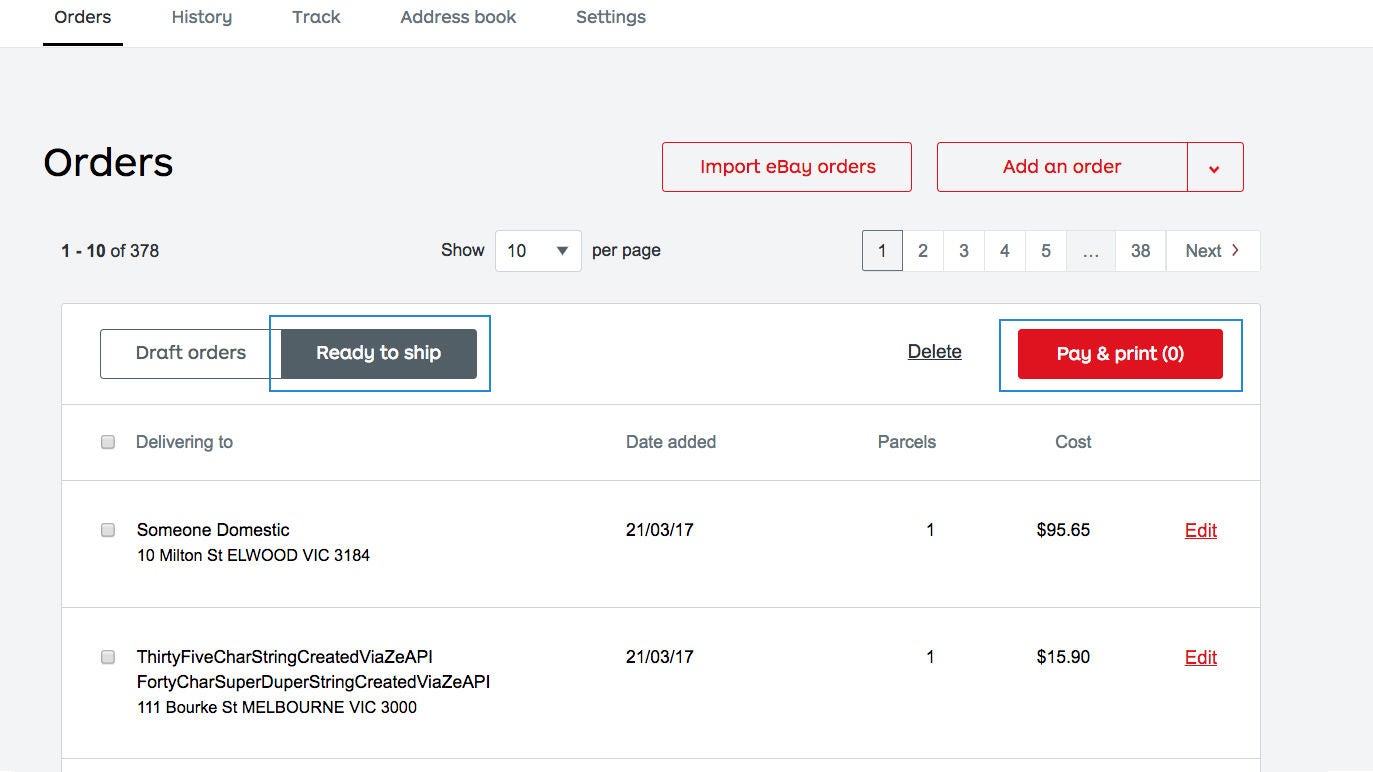
Once you’ve connected your eBay store, you’ll be able to import your eBay orders to bring them all into your Orders list.
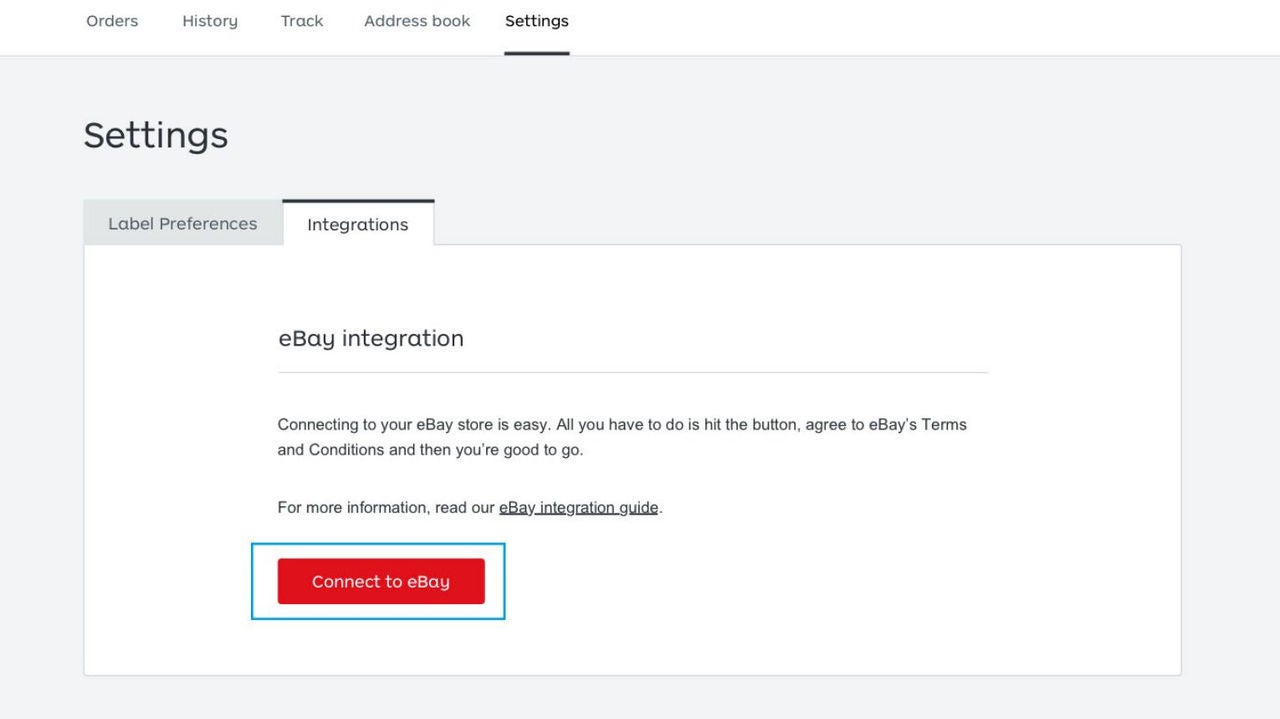
Log in and go to your Settings menu. Once there, select the Integrations tab and hit Connect to eBay. If you haven’t already, log in to your eBay account.
Once logged into eBay, hit I agree to let eBay connect to Australia Post. At this point your eBay store should be successfully linked, and you’ll be redirected back to the Integrations tab in your settings.
You only need to make changes to your eBay store connection if your eBay store changes, or your connection expires.
If your eBay store changes, or you want to connect to a different eBay store.
From the Integrations tab:
- select Disconnect
- select Disconnect again
- select Connect to eBay and follow the same steps for ‘Connecting your eBay account’
We’ll let you know when your eBay connection is about to expire, and again after it has expired. Your customers won’t be notified about any orders shipped while your connection is expired.
To reconnect your store.
From the integrations tab:
- select Reconnect
- If you haven’t already, log in to your eBay account
- Select I agree to allow eBay to connect to Australia Post
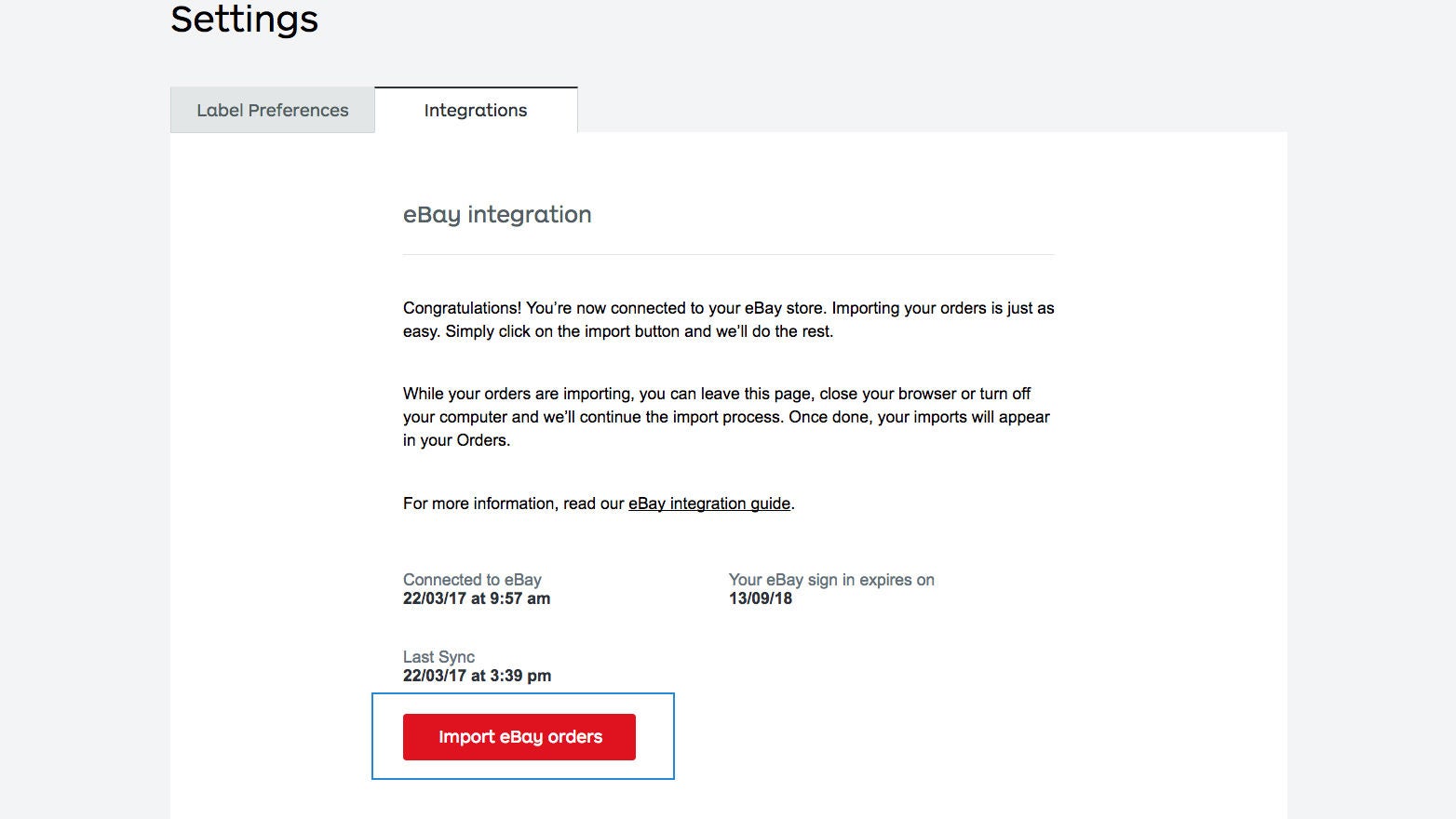
Now that you’ve connected your eBay store, importing your eBay orders is easy. Go to Orders and hit Import eBay orders to begin.
The import process works in the background, and could take some time depending on how many orders are being imported. The good news is you’ll still be able to work on other things, close your browser or turn off your computer without impacting the import.
Note: You can only import orders that eBay has tagged as ‘Paid’ within the past 30 days. Orders older than 30 days can’t be imported.
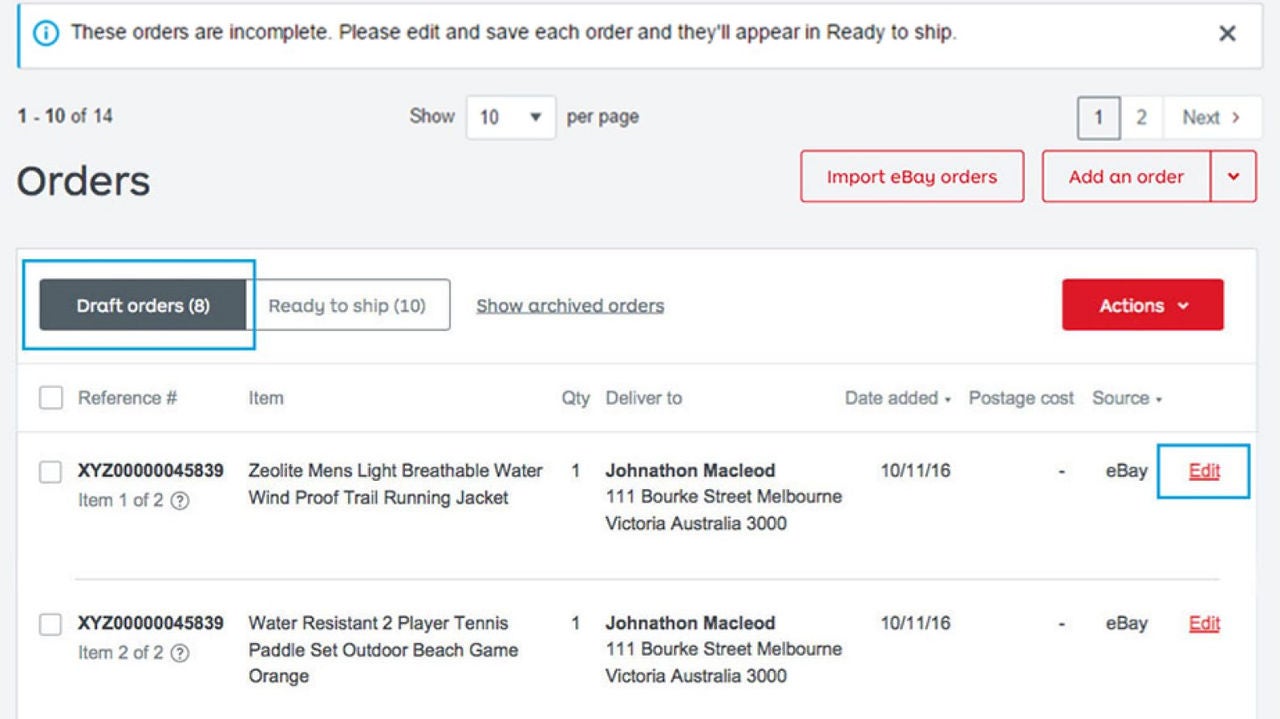
Orders imported from eBay don't have the required information to print a shipping label, so all newly imported oders will be listed in Draft orders. There you can review and edit the details of each order so they're ready for delivery.
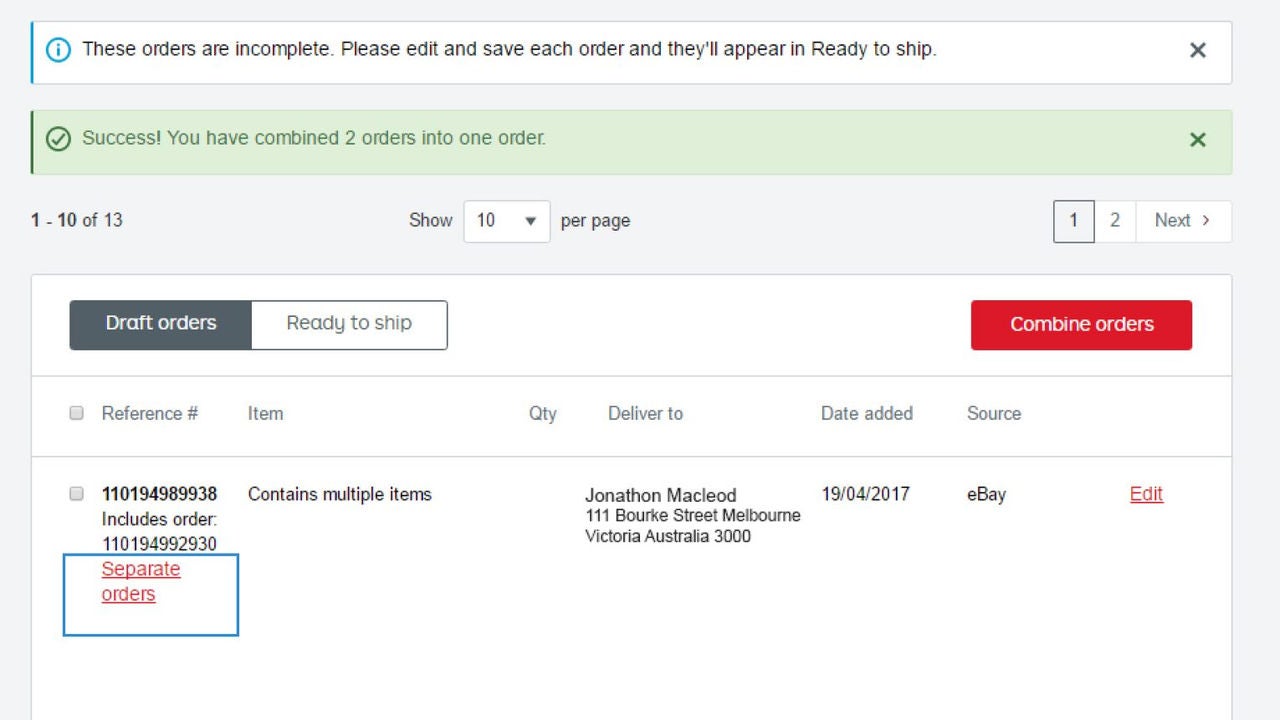
If you need to send multiple orders to a customer, combining them is a great way to save on shipping costs. To combine orders, go to your Draft orders and select the orders you want to combine. You can only combine orders with the same delivery address. Once you’ve selected your orders, hit Combine orders and you’ll see a detailed breakdown of the orders you’re combining. If you’re happy to proceed, hit Combine orders, otherwise hit Cancel.
Note: once orders have been combined, they can’t be separated out again.
Once your orders have been combined, you’ll need to edit the new order before you can pay for and print a shipping label.

Separating a combined order is easy. When in Draft orders, select the order you want to separate and hit Separate orders. You’ll receive a confirmation message stating you’ve successfully separated your orders and they’ll once again appear in Draft orders.
Editing a draft order is easy. Simply enter or change your order details as you normally would when adding a single order. Once you’ve entered / changed all the required information, hit Save order and your draft order will be transferred to Ready to ship.
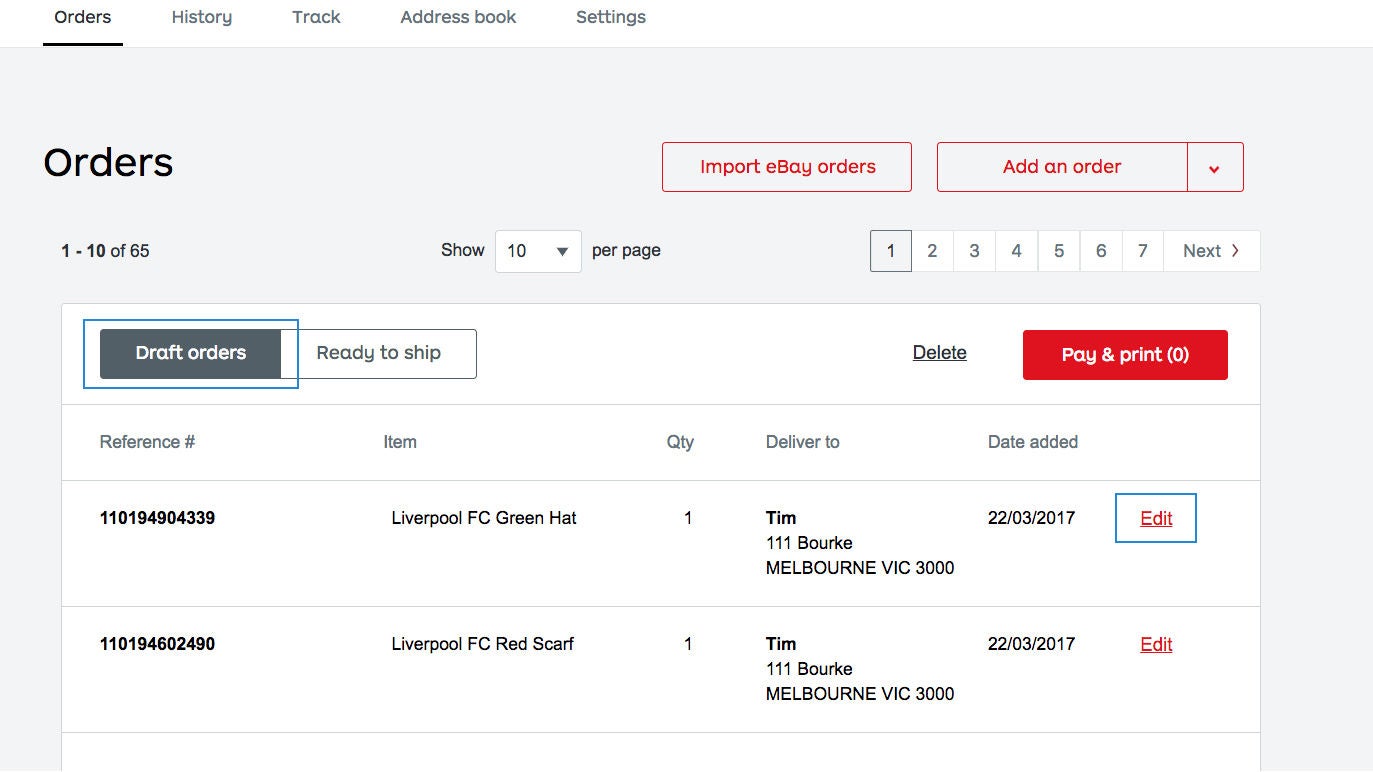
To ship your newly imported eBay orders, select the Ready to ship tab to see all orders that are ready for payment and shipping.
Select the orders you want to ship using the checkboxes, and hit Pay & print to proceed to the payment screen. You can now pay for your postage, print your labels and send your parcels.